About the Vector Data Validation Tool
Introduction
The Vector Data Validation Tool is an email-based tool which aims to simplify the process of submitting and verifying vector data to GBIF.
Purpose of the System
The VectorNet Data Validation System is designed to ensure that all vector surveillance data (ticks, mosquitoes, midges, and sandflies) is accurate, consistent, and complete before submission to the VectorNet GBIF repository. The system helps data providers identify common errors automatically and provides a streamlined workflow for expert scientific review.
Available functions
The standard tool supports the following functions:
- Download Excel data entry template
- Submit data for automated validation
- View interactive map of submitted data
- Review report of activity
- Submit data for manual validation
- Review feedback from reference entomologists
- Submit data to GBIF
Note: A customised version of the tool is available to support the validation of Systematic Literature Review (SLR) data.
Download Excel data entry template
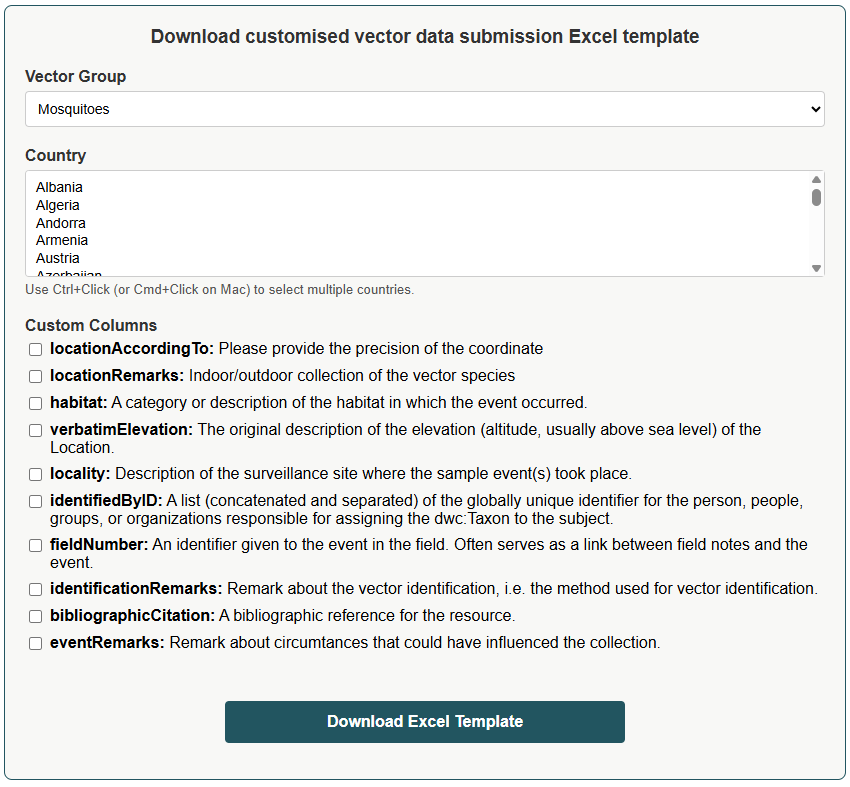
A customised Excel data entry template allows users to set the country (or countries), vector group and optional columns to include in the data entry template. You should create a customised template the first time you use the vector data validation tool to ensure that the data format is correct.
You can create new templates whenever needed
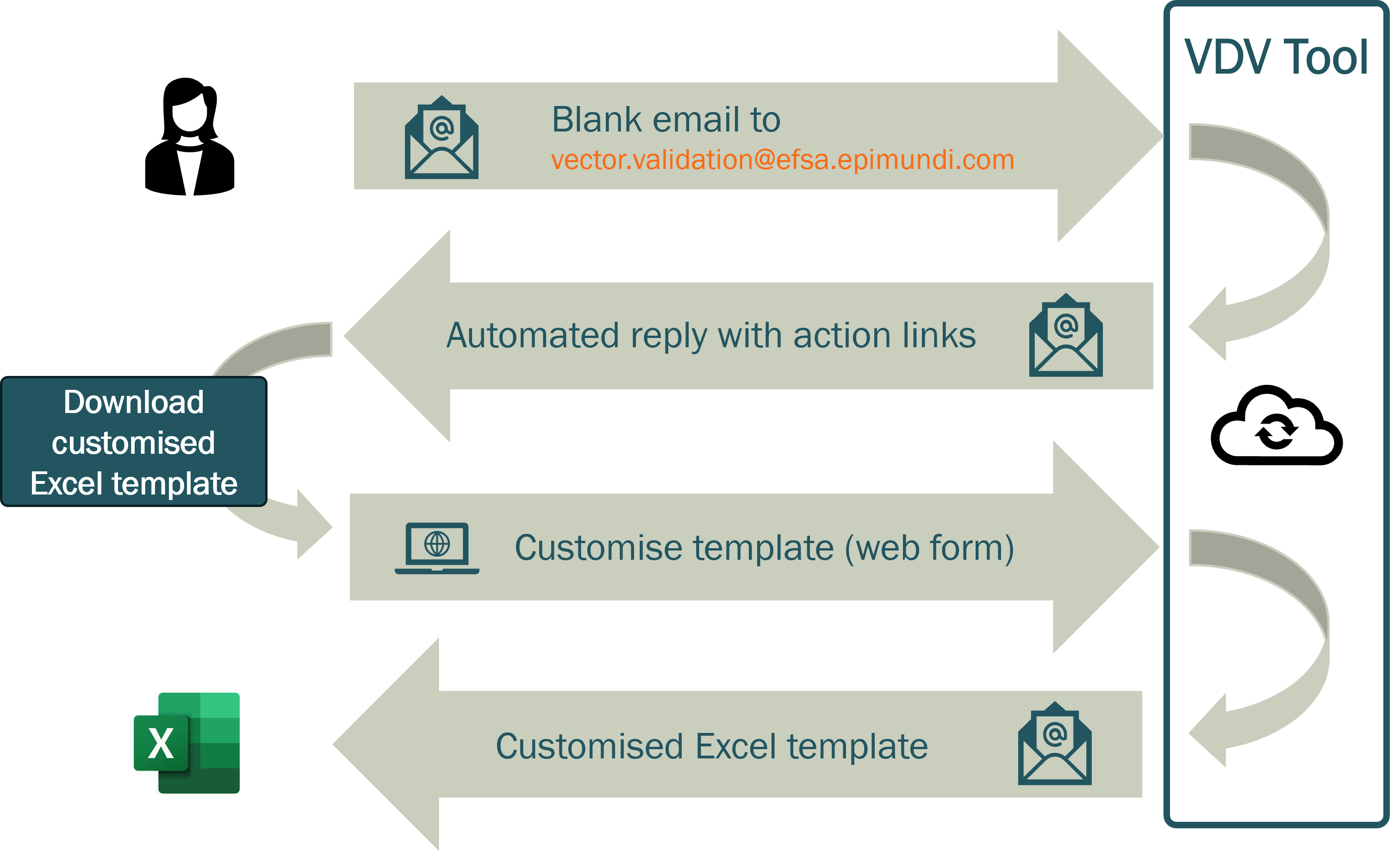
A template is created using the link in any email sent to you from the tool.

- If you don’t already have an email with the button, send a blank email to vector.validation@efsa.epimundi.com
- Click on the button to open the customisation web form
- Submit the form to request the new template
- A new template will be sent by email within a few minutes
Submit data for automated validation
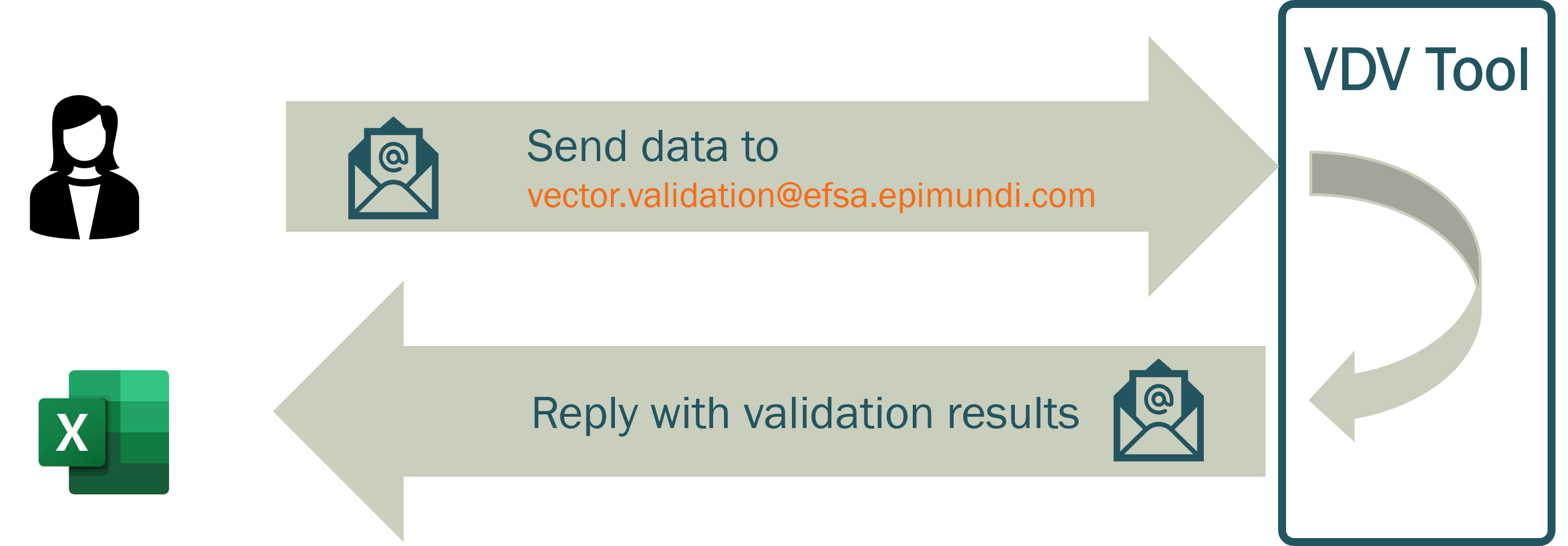
Automated data validation checks for errors and warnings. You can send data for automated validation as many times as you like. To validate data:
- Enter your data into the Excel template
- There are built-in checks for data validation within the template
- Send your Excel file as an attachment to vector.validation@efsa.epimundi.com
- You will receive a response within a few minutes
- If you do not receive a response within 10 minutes, contact the help desk at vector.help@efsa.epimundi.com
- The response will include
- Whether the data has been validated or not
- A copy of the Excel file with comments and highlights, showing
- Errors (in red): these must be fixed before submission
- Warnings (in yellow): these should be checked (but may be valid data)
- Alerts (in blue): these should be checked (but may be valid data)
Two outcomes are possible:
- Problems detected
- The email will list the different types of errors, warnings and alerts
- Open the file, look at the highlighted cells and the comments
- If there are spatial errors, you can check the map to see the errors
- Correct the errors
- Resubmit the updated file for automated validation
- Important: Make sure you retain the last two columns when you resubmit. These contain automatically generated codes to match data across multiple submissions.
- Data validated
- No errors detected
- There still may be warnings or alerts, and these should be checked.
- If you make changes, submit the updated file once again for automated validation.
- If you are happy with the data, you are ready to send for manual validation
View interactive map of submitted data
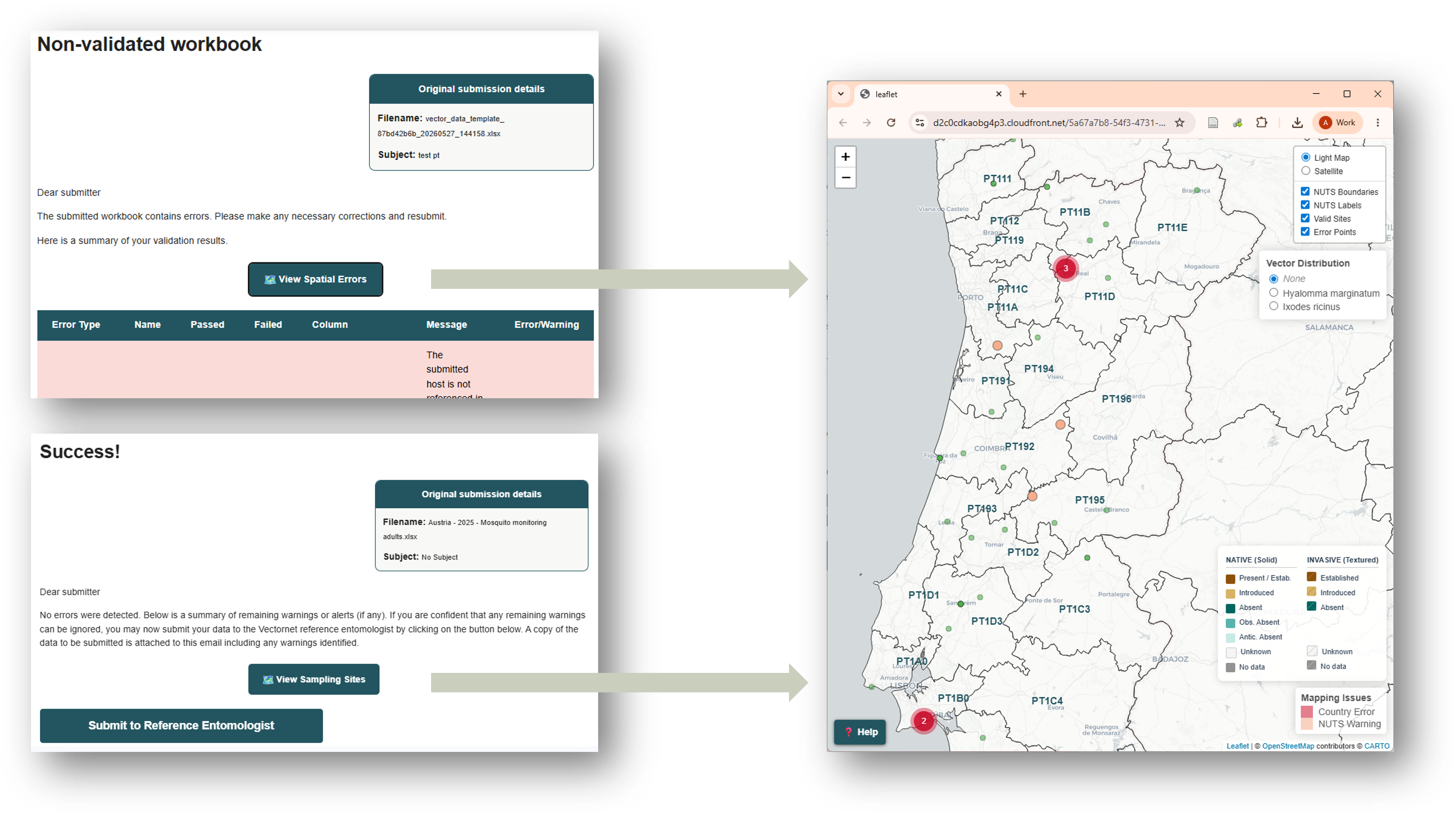
When data is submitted for automated validation, an online map is created allowing you to visualise your data.
To view the map, click on the button in the response email. To learn more about interactive mapping, click the button below:
Review report of activity
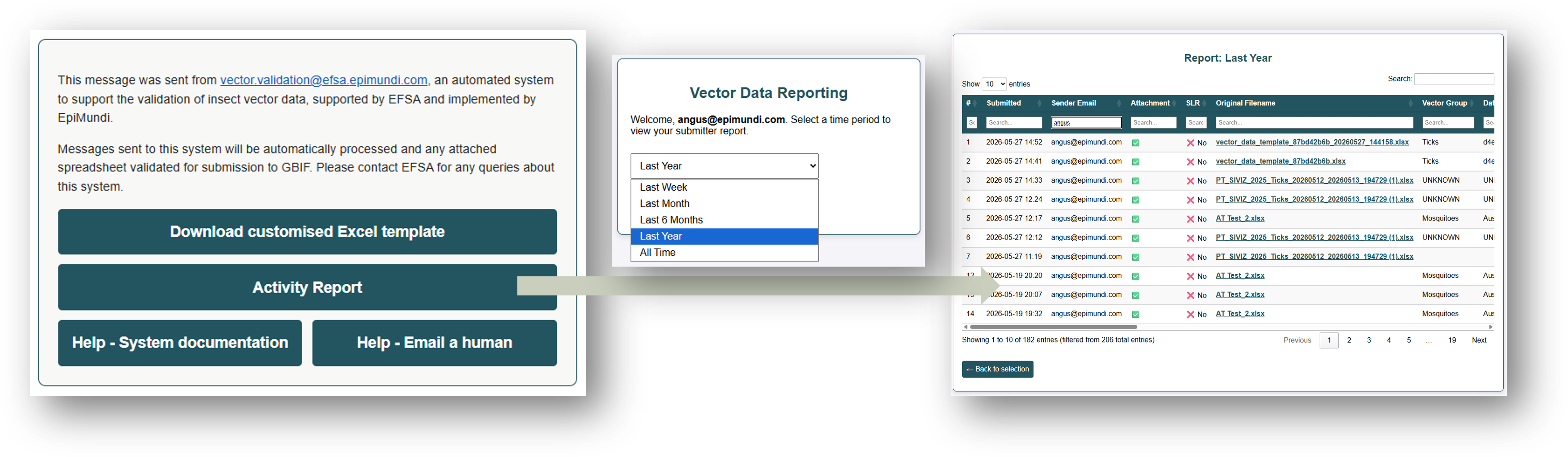
It is sometimes difficult to keep track of all the versions that have been sent to the system. To see a full history of your use of the validation tool, you can see online reports of your activity.
To open a report, click on the ‘Activity Report’ button in any email that you receive. This will open a web form to specify the time period for the report.
Each time period is referenced to today.
- Last week = the previous 7 days
- Last month = the previous 30 days
- Last year = the previous 365 days
The report includes one row for each email sent to the validation tool. For full details on using the activity report, click the button below.
Submit data for manual validation
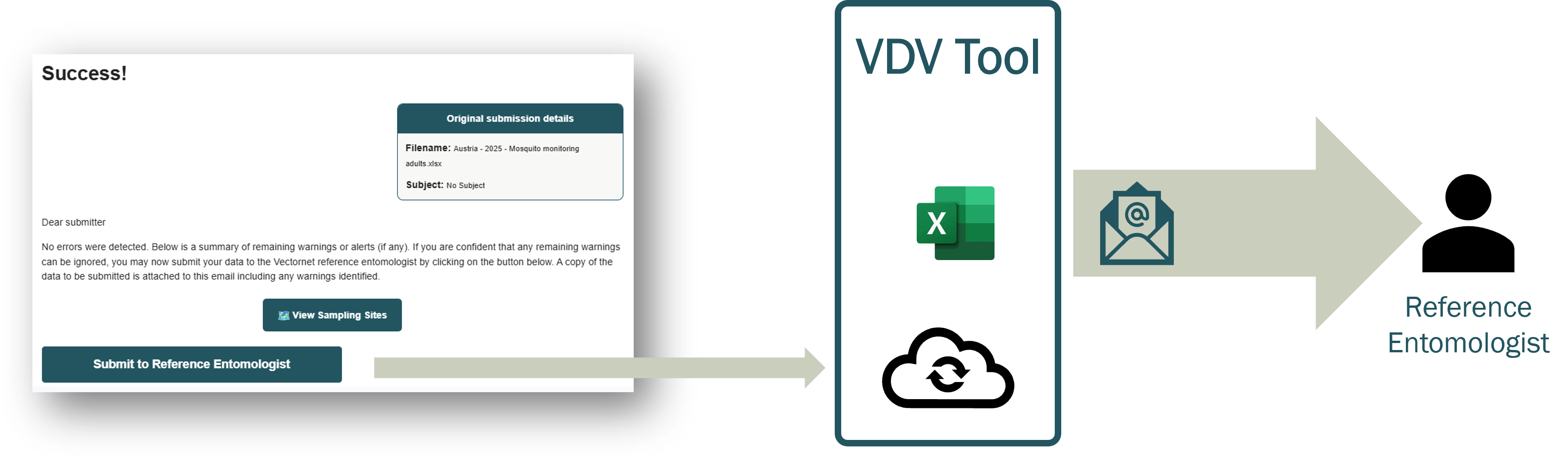
Once data has passed automated validation, and you are confident that any warnings or alerts do not represent errors, you can submit the data for manual validation by the vector group reference entomologist.
All you need to do is click the button on the response email, and confirm submission. A copy of your most recent data will be sent for manual review.
Review feedback from reference entomologists
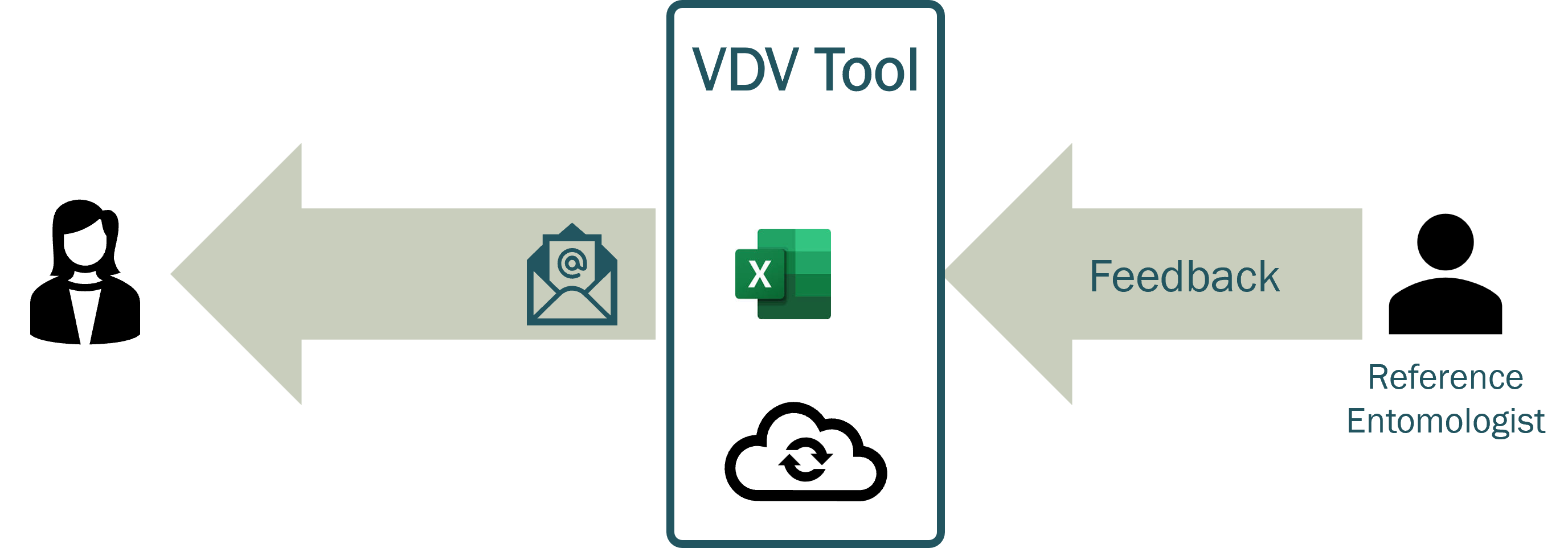
Once the reference entomologist has reviewed and validated the data, they will send feedback through the validation tool. There are two possible outcomes:
- Problems detected
- The email and the attached spreadsheet will contain comments and highlights indicating which row need to be corrected
- Make the required corrections and then restart the validation process
- Send for automated validation
- When the data is confirmed to have no errors, resubmit for manual validation
- Data validated
- If no problems are detected, the data is ready for submission to GBIF
- There will be an extra worksheet formatted specifically for GBIF submission
Submit data to GBIF
The new worksheet (5) is formatted specifically for GBIF submission. Submitting entomologists are required to submit data to GBIF themselves - the automated tool is not able to do this.
If you have any questions or problems with GBIF submission, contact your national or regional GBIF contact point for assistance.