Interactive mapping interface
Introduction
Any email you receive after submitting data to the automated validation tool includes a link to view the data on a map.
This is intended to help with data quality control and troubleshooting. It enables spatial errors to be quickly identified and corrected, as well as checking alerts about identification of species in areas where they were previously assessed as absent.
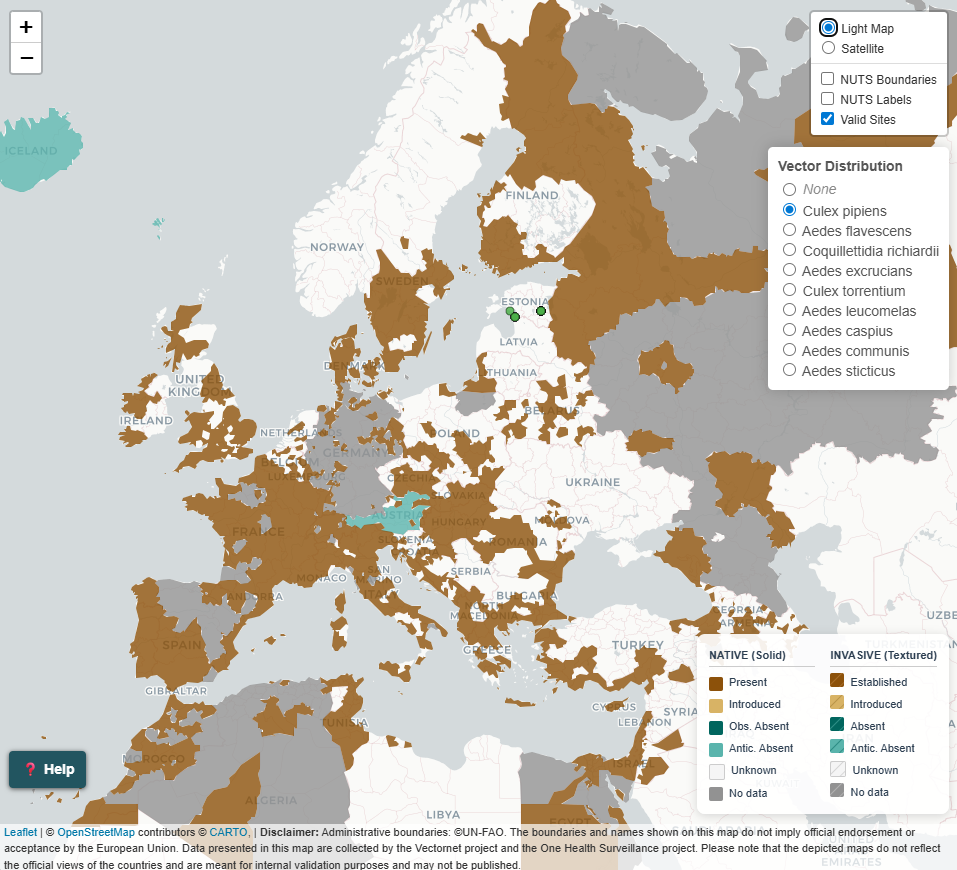
Accessing the maps

Click on the “View Sampling Sites” button in any email you receive from the system.
Layers
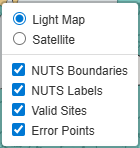
You can turn on and off different layers:
- NUTS Boundaries
- Display or hide the NUTS / GAUL administrative subdivision boundaries
- These allow you to determine if the sampling site is in the right administrative subdivision
- NUTS labels
- Display or hide the NUTS / GAUL code
- These allow you to check if the sampling site code is correct
- Valid sites
- Display or hide the location of valid sampling sites (marked as a green circle)
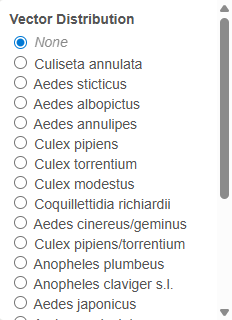
- Vector distribution
- Species included in your data submission are listed
- Select one species to display the distribution of that species
- Select None to hide the distribution layer
Vector distribution
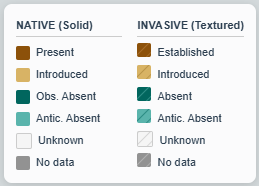
The following symbols / colours are used in the vector distribution layers. Colours have been developed to allow all users (including those with different colour-blindness) to distinguish the categories.
- Native vs Invasive species
- Native are shown in plain colours
- Invasive are shown with diagonal stripes
- Present
- Show in brown
Native - PresentandInvasive - Established- dark brownIntroduced- light brown
- Absent
- Shown in green
AbsentandObserved absent- dark greenAnticipated absent- light green
- Absence of information
- Shown in grey or clear
- Data absent from the database - no colour
No data(as noted in the database) - dark greyUnknown(as noted in the database) - light grey
Map interaction
Navigation
- Zoom in
- Double click
- Click on + button
- Mouse scroll up
- Zoom out
- Click on - button
- Mouse scroll down
- Pan
- Click and drag
- Site name
- Hover the mouse over a site
Site attributes
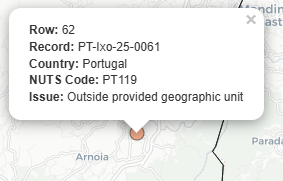
- Extended site attributes
- Click on site
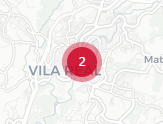
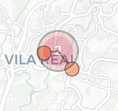
- Multiple sites close together
- Shown as a large point with the number of sites
- Click to separate
- Float or click on the separate sites to see attributes